
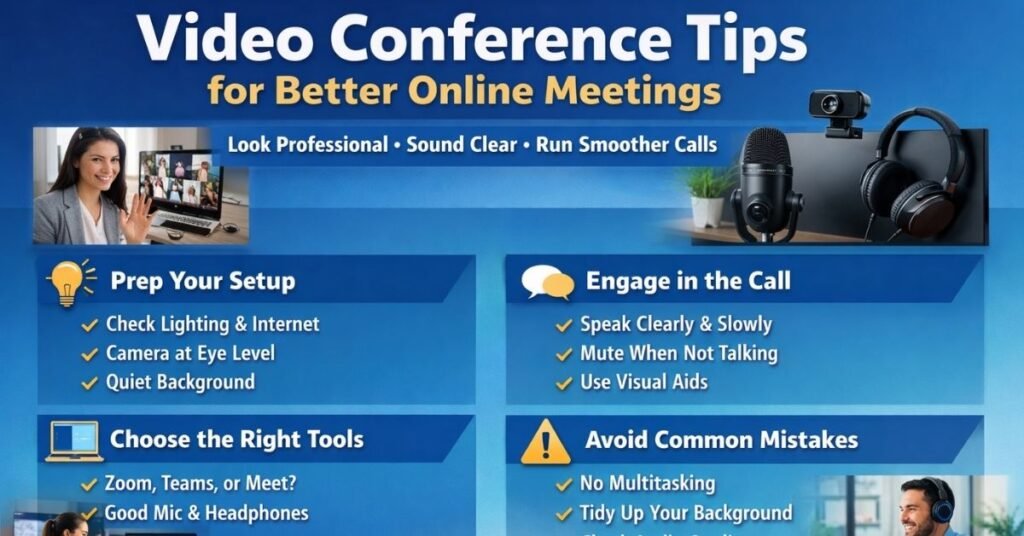
Introduction: Why Video Conference Tips Matter More Than Ever
If you’ve ever wrapped up a video call and thought, “That could have gone better,” you’re not alone. Video meetings are now the backbone of remote work, hybrid teams, online education, client consultations, interviews, and even sales closings. Yet most people still approach them casually—logging in late, hoping the mic works, and praying the Wi-Fi holds.
That’s exactly why video conference tips aren’t just “nice to know” anymore. They’re essential professional skills. The way you appear, sound, and communicate on camera shapes how others perceive your competence, confidence, and credibility—often more than what you actually say.
In this guide, I’ll walk you through practical, field-tested video conference tips I’ve seen work in real offices, remote teams, and client-facing environments. You’ll learn how to prepare, how to look and sound your best, how to run smoother meetings, and how to avoid the mistakes that quietly damage your reputation online. Whether you’re a freelancer, manager, student, or business owner, these insights will immediately upgrade your next call.
Understanding Video Conference Tips: What They Really Mean in Practice
At its core, video conference tips are about reducing friction and increasing clarity. Think of a video call as a digital version of walking into a meeting room. If the lighting is bad, the chairs are noisy, and people talk over each other, the meeting fails—no matter how good the agenda is.
Video conferencing adds extra layers: cameras, microphones, internet stability, screen sharing, and human attention spans that are shorter online. Good video conference tips help you manage all of that so the technology fades into the background and the conversation takes center stage.
A useful way to think about it is this:
- Your camera replaces body language
- Your microphone replaces presence
- Your setup replaces the meeting room
When those three elements are dialed in, people trust you more, stay engaged longer, and leave meetings with clear outcomes. When they’re not, even smart ideas sound unpolished. These tips aren’t about perfection—they’re about intentional setup and small habits that compound into professional results.
Benefits and Use Cases: Who Gains the Most From Better Video Conference Skills
Strong video conference tips benefit almost everyone, but the impact is especially noticeable in high-stakes situations. Professionals who master virtual meetings often stand out without trying harder—they simply remove distractions that hold others back.
For remote employees, good video habits lead to clearer communication, fewer misunderstandings, and better visibility with managers. Freelancers and consultants close more deals because clients feel confident and heard. Educators keep students engaged instead of fighting constant tech interruptions. Job seekers leave a stronger impression in interviews, even from a living room.
Common real-world scenarios where these tips make a difference include:
- Weekly team meetings where decisions need clarity
- Client presentations or sales demos
- Online interviews and performance reviews
- Virtual workshops, webinars, and trainings
- Cross-time-zone collaboration
In each case, video conference tips reduce fatigue, increase focus, and help conversations move forward. The biggest benefit isn’t technical—it’s psychological. When people feel the meeting is smooth and respectful of their time, they trust the person running it.
Step-by-Step Video Conference Tips for Professional, Stress-Free Meetings
Preparing Before the Call
Preparation is where most successful video conferences are won. Five minutes of setup can prevent thirty minutes of frustration. Start by testing your internet connection and closing bandwidth-heavy apps. Even strong Wi-Fi can struggle if multiple devices are streaming at once.
Next, check your camera angle. Eye-level framing feels natural and confident, while a low-angle laptop shot can feel awkward or unprofessional. Adjust your lighting so your face is clearly visible—natural light from a window works best, but a simple desk lamp placed behind your screen also helps.
Finally, review the meeting goal. Are you sharing information, brainstorming, or making a decision? When you know the purpose, your communication becomes sharper and shorter.
During the Call
Once the meeting starts, presence matters more than perfection. Mute when you’re not speaking, but stay visually engaged. Nodding, smiling, and maintaining eye contact with the camera signal attentiveness—even when you’re silent.
Speak slightly slower than you would in person. Video compression and latency can blur fast speech. Pausing briefly before responding also prevents people from talking over each other. If you’re leading the meeting, set clear expectations for participation and timing early on.
After the Call
Strong video conference tips don’t end when the call does. Summarize action items in a follow-up message while the discussion is still fresh. This reinforces clarity and shows leadership. Over time, this habit alone can dramatically improve how others experience meetings with you.
Tools, Platforms, and Recommendations for Video Conferencing Success
The right tools don’t replace good habits—but they support them. Platforms like Zoom, Microsoft Teams, and Google Meet each offer reliable video conferencing with different strengths. Zoom excels in ease of use and breakout rooms, Teams integrates tightly with workplace tools, and Google Meet works seamlessly for quick browser-based calls.
Free plans are usually enough for casual meetings, but paid tiers offer recording, longer durations, and better admin controls—worth it for businesses and educators.
On the hardware side, an external microphone often provides a bigger quality boost than an expensive camera. Clear audio builds trust faster than sharp video. Noise-canceling headphones also reduce echo and distractions, especially in shared spaces.
When choosing tools, prioritize reliability and simplicity over flashy features. A stable, familiar setup beats a complex one that fails under pressure.


4
Common Video Conference Mistakes and How to Fix Them
Even experienced professionals fall into habits that weaken their virtual presence. One common mistake is multitasking. Typing, checking emails, or glancing at another screen may feel efficient, but it shows instantly on camera. People notice disengagement, even subconsciously.
Another frequent issue is poor lighting and background clutter. Messy visuals distract viewers and dilute your message. A neutral wall, bookshelf, or subtle virtual background works far better than a busy room.
Audio problems are equally damaging. Speaking too far from the mic, forgetting to mute background noise, or using laptop speakers in echo-prone rooms can derail conversations. Simple fixes—headphones, mic checks, and muting when silent—solve most of these issues.
The key is awareness. Recording a practice call and watching it back once can reveal habits you didn’t know you had.
Advanced Video Conference Tips for Engagement and Authority
Once the basics are solid, advanced video conference tips focus on engagement. Use names when responding—it keeps people attentive. Ask direct questions instead of open-ended ones to encourage participation.
Visual aids help, but don’t overload slides. One idea per slide keeps attention anchored to you rather than the screen. If possible, switch between screen share and face view so human connection isn’t lost.
Time management is another authority signal. Start and end on time. If discussions drift, acknowledge the point and park it for later. People remember meetings that respect their schedules.
These subtle behaviors don’t feel dramatic, but over time they build a reputation for professionalism and leadership in virtual spaces.

4
Conclusion: Turning Video Conference Tips Into a Career Advantage
Video meetings aren’t going away—and that’s good news for anyone willing to master them. With the right video conference tips, you can turn routine calls into opportunities to build trust, influence decisions, and stand out professionally.
The biggest takeaway is this: small improvements compound. Better lighting, clearer audio, intentional preparation, and respectful facilitation create meetings people actually enjoy attending. Over time, those experiences shape how colleagues, clients, and leaders see you.
Start with one or two changes from this guide and apply them consistently. Your next call will feel smoother, more confident, and more productive—and others will notice.
FAQs
What are the most important video conference tips for beginners?
Focus on audio clarity, good lighting, and a stable internet connection. These three elements have the biggest impact on how professional you appear.
How can I look more confident on video calls?
Position your camera at eye level, sit upright, and look into the camera when speaking. Small posture changes significantly affect perception.
Are paid video conferencing tools worth it?
For frequent or professional use, yes. Paid plans offer reliability, longer meetings, and features like recording that save time.
How do I reduce video call fatigue?
Keep meetings shorter, schedule breaks between calls, and turn off self-view when possible to reduce cognitive load.
What’s better: webcam or laptop camera?
A quality webcam usually offers better framing and clarity, but good lighting can make even a laptop camera look professional.

Michael Grant is a business writer with professional experience in small-business consulting and online entrepreneurship. Over the past decade, he has helped brands improve their digital strategy, customer engagement, and revenue planning. Michael simplifies business concepts and gives readers practical insights they can use immediately.