If you’ve ever spent an hour carefully tracing hair, fabric edges, or complex backgrounds in Photoshop—only to zoom out and realize the mask still looks “off”—you’re not alone. Masking has always been one of those make-or-break skills in photo editing. It’s also one of the most frustrating. That’s exactly why the SAM masking technique Photoshop users are talking about has become such a game-changer.
SAM masking isn’t just another shortcut or trendy trick. It represents a fundamental shift in how selections and masks can be created—moving from painstaking manual work to intelligent, context-aware automation. Whether you’re a professional retoucher, a content creator, or someone editing product photos late at night for an online store, learning this technique can save hours while improving accuracy.
In this guide, I’ll walk you through everything you need to know about the SAM masking technique in Photoshop: what it is, how it works, why it matters, and exactly how to use it in real projects. We’ll cover practical use cases, step-by-step workflows, tool comparisons, common mistakes, and fixes—based on real-world experience, not theory. By the end, you’ll understand not just how to use SAM masking, but when it’s the right tool and when traditional masking still wins.
What Is the SAM Masking Technique in Photoshop?

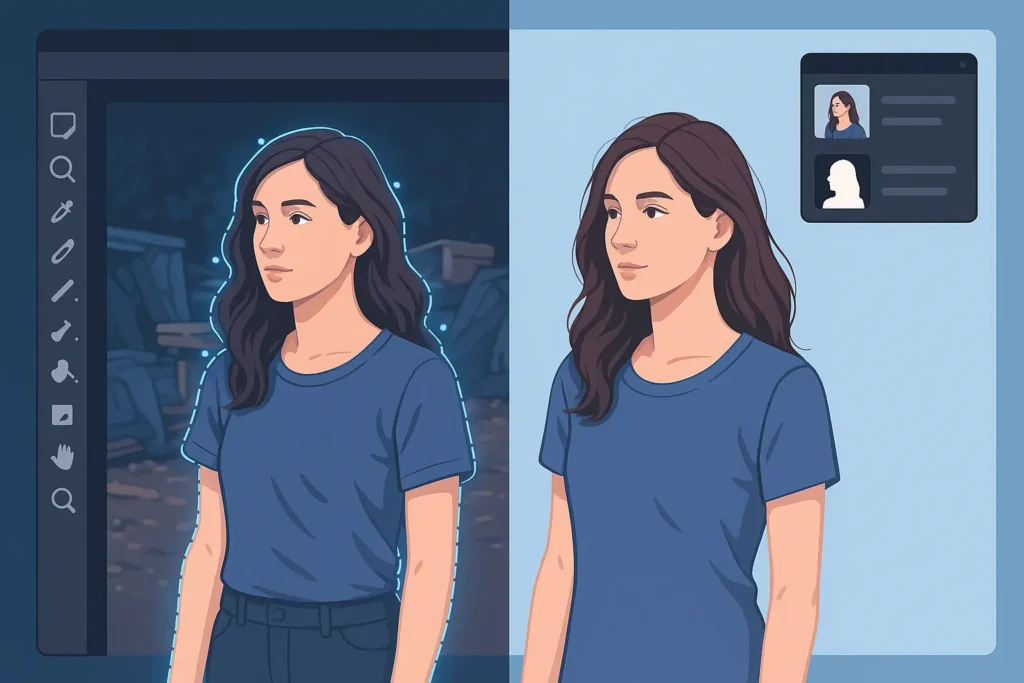
At its core, the SAM masking technique Photoshop users refer to is built around the Segment Anything Model (SAM), an AI-based approach to image segmentation. Think of it like a highly trained assistant who understands visual boundaries the way humans do. Instead of you manually painting, tracing, or refining every edge, SAM analyzes the image and intelligently separates objects from backgrounds based on context.
A helpful analogy is this: traditional masking tools are like scissors—you cut carefully and hope your hand doesn’t slip. SAM masking is more like telling someone, “Cut out the person,” and watching them do it with near-perfect precision. It’s not magic, but it’s impressively close.
In Photoshop workflows, SAM-style masking typically appears through AI-powered selection tools, plugins, or integrations that leverage similar segmentation logic. These tools allow you to:
- Click on an object to instantly generate a detailed mask
- Add or subtract areas with minimal manual refinement
- Handle complex edges like hair, fur, smoke, or translucent materials
What makes SAM masking different from older “quick selection” methods is its understanding of the entire image. It doesn’t just look at color contrast; it understands shapes, depth, and object boundaries. That’s why it performs so well on challenging images where traditional masking struggles.
For beginners, this means faster results with less frustration. For professionals, it means scalability—handling large batches of images without sacrificing quality.
Why the SAM Masking Technique Matters Today
Masking has always been central to Photoshop work, but expectations have changed. Clients want faster turnarounds. Content teams need dozens of images per day. Social platforms demand polished visuals, even from small creators. This is where the SAM masking technique Photoshop workflows really shine.
One major reason this technique matters is consistency. Manual masking varies depending on who’s doing it and how tired they are. SAM-based masking delivers repeatable results across images, which is invaluable for:
- E-commerce product photos
- Social media content batches
- YouTube thumbnails and promotional graphics
- Editorial photo composites
Another reason is accessibility. You no longer need 10 years of Photoshop experience to create clean, professional masks. SAM masking lowers the skill barrier, letting beginners achieve results that used to require advanced pen tool mastery.
That doesn’t mean traditional skills are obsolete. In fact, the best results often come from combining SAM masking with human judgment—letting AI do the heavy lifting, then refining where it matters. This hybrid approach is quickly becoming the industry standard.
Ultimately, SAM masking matters because it gives you back time. And in creative work, time is often the most valuable resource you have.
Benefits and Real-World Use Cases of SAM Masking
The biggest benefit of the SAM masking technique Photoshop users rely on is speed—but that’s just the beginning. Let’s talk about how it actually shows up in real projects.
For portrait photographers and retouchers, SAM masking excels at subject isolation. Hair, eyelashes, and soft edges that once took 30 minutes to refine can now be masked in seconds. This makes background swaps, color grading, and lighting adjustments far more efficient.
In e-commerce, the impact is even bigger. Imagine masking 100 product photos with reflective surfaces or transparent packaging. Traditional methods would take days. SAM masking can reduce that to hours, with consistent results across the entire catalog.
Graphic designers also benefit when creating composites. Instead of fighting jagged edges or halos, they can focus on composition and storytelling. The mask becomes a reliable foundation rather than a constant obstacle.
SAM masking is especially well suited for:
- High-volume workflows
- Complex edge detection (hair, fur, glass)
- Mixed lighting conditions
- Beginners who want professional results quickly
That said, it’s not a silver bullet. Extremely low-contrast images or abstract compositions may still require manual refinement. But in most everyday scenarios, SAM masking dramatically improves both efficiency and output quality.
Step-by-Step Guide to Using the SAM Masking Technique in Photoshop
Let’s break down a practical workflow so you can apply the SAM masking technique Photoshop style in real projects. While Photoshop doesn’t label a button “SAM,” many AI-based selection tools and plugins follow the same principles.
Start by preparing your image. Clean up obvious distractions, ensure proper resolution, and work non-destructively using duplicate layers. Good input leads to better AI output.
Next, activate an AI-powered selection tool or plugin that supports advanced segmentation. Use a simple click or rough brush stroke to identify the main subject. Let the AI generate the initial mask.
Once the mask appears, don’t rush to finalize it. Zoom in and inspect critical areas like edges, hairlines, and shadows. Use refinement tools to add or subtract areas where needed. This step is where human judgment still matters.
After refinement, apply the mask to a layer or adjustment. Test it by changing the background color or adding contrast—this reveals imperfections you might otherwise miss.
Best practices include:
- Always refine at 100% zoom
- Toggle the mask overlay to spot missed areas
- Combine SAM masking with manual brushes for perfection
- Save reusable selections for batch workflows
With repetition, this process becomes second nature, and your masking time drops dramatically.
Tools, Comparisons, and Expert Recommendations
When people talk about the SAM masking technique Photoshop workflows, they’re often referring to a mix of native tools and third-party solutions. Each has strengths and trade-offs.
Photoshop’s built-in AI selection tools are the most accessible. They’re tightly integrated, fast, and reliable for most tasks. For many users, these tools alone are enough.
Third-party plugins often push things further. They may offer better edge detection, batch processing, or specialized controls for hair and transparency. Paid options typically outperform free ones in complex scenarios, but free tools are excellent for learning and light work.
Free tools are best if you’re experimenting or working on occasional projects. Paid tools make sense if masking is a daily part of your workflow and time savings translate directly into income.
My recommendation is simple: start with what Photoshop offers, master it, and only invest in plugins when you hit real limitations. Tools don’t replace skill—they amplify it.
Common SAM Masking Mistakes and How to Fix Them
Even with advanced AI, mistakes happen. One common issue in SAM masking technique Photoshop workflows is over-reliance on automation. Users trust the AI blindly and skip refinement, leading to subtle but noticeable errors.
Another frequent mistake is poor image preparation. Low-resolution files, heavy compression, or extreme noise confuse segmentation models. Fix this by cleaning the image before masking.
Edge halos are also common, especially when compositing onto darker or lighter backgrounds. The fix is simple: refine edges manually and use slight feathering where appropriate.
Finally, many users forget to test masks in real conditions. A mask that looks fine on a white background might fall apart on a textured one. Always test before final export.
The solution to most problems is the same: slow down for the final 10%. Let AI handle the bulk, but apply human judgment where it counts.
Conclusion
The SAM masking technique Photoshop users are embracing isn’t about replacing creativity—it’s about removing friction. By letting intelligent tools handle complex selections, you free yourself to focus on design, storytelling, and impact.
Whether you’re editing portraits, building composites, or managing high-volume product images, SAM masking can dramatically improve both speed and quality. The key is balance: use AI as a powerful assistant, not an unquestioned authority.
If you haven’t explored this approach yet, now is the perfect time. Try it on your next project, refine the results, and see how much time you save. And if you have questions or discoveries of your own, share them—great workflows evolve through shared experience.
FAQs
What is the SAM masking technique in Photoshop?
It’s an AI-driven approach to creating masks using advanced image segmentation, allowing faster and more accurate selections.
Is SAM masking built directly into Photoshop?
Photoshop uses similar AI-based selection tools, though SAM itself often appears through plugins or integrations.
Is SAM masking good for beginners?
Yes. It reduces the learning curve and helps beginners achieve professional-looking masks quickly.
Can SAM masking replace manual masking completely?
Not entirely. It handles most of the work, but manual refinement is still important for perfect results.
Does SAM masking work on hair and fur?
Yes, it’s particularly strong at handling complex edges like hair, fur, and soft transitions.

Adrian Cole is a technology researcher and AI content specialist with more than seven years of experience studying automation, machine learning models, and digital innovation. He has worked with multiple tech startups as a consultant, helping them adopt smarter tools and build data-driven systems. Adrian writes simple, clear, and practical explanations of complex tech topics so readers can easily understand the future of AI.