
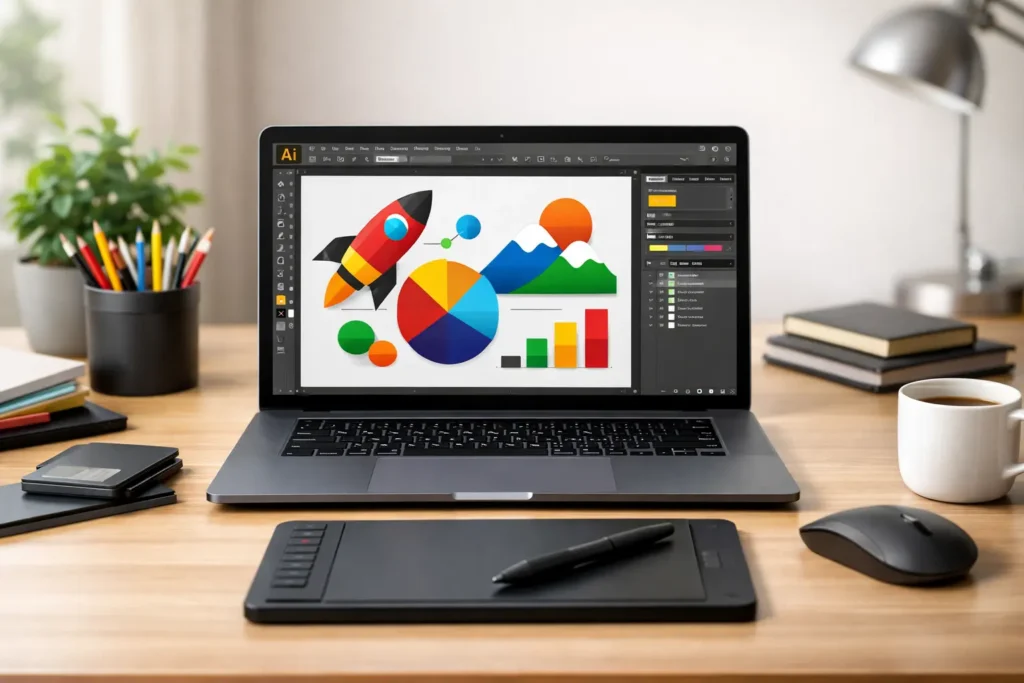
An AI file is Adobe Illustrator’s native file format for vector graphics. Whether you’re a designer working with logos, a marketer preparing print materials, or someone who just received an AI file and doesn’t know what to do with it, this comprehensive guide covers everything you need to know about AI files, from understanding what they are to opening, converting, editing, and downloading them.
What is an AI File? (Adobe Illustrator Artwork Explained)
An AI file (Adobe Illustrator Artwork file) is a proprietary vector graphics format created and primarily used by Adobe Illustrator. The .ai file extension represents the native format for saving artwork, designs, and illustrations created in Adobe Illustrator. Unlike raster image formats that store pixel data, AI files contain mathematical paths, points, and curves based on PostScript technology, making them infinitely scalable without loss of quality.
AI files are the go-to format for professional designers, illustrators, and creative professionals who need to create and edit vector-based artwork. The format supports complex design elements including layers, transparency, gradients, effects, editable text, brushes, and more.
Key Characteristics of AI Files
AI files have several distinctive features that make them ideal for professional design work:
- Scalability: AI files are resolution-independent, meaning you can scale them to any size—from a business card to a billboard—without losing quality or becoming pixelated.
- Small File Size: Because they store mathematical paths rather than pixel data, AI files are typically much smaller than equivalent high-resolution raster images.
- Layer Support: AI files support multiple layers, making it easy to organize and edit complex designs.
- Transparency: Full support for transparent backgrounds and alpha channels, essential for logos and icons.
- Editable Elements: Text remains editable as text (not converted to outlines), and effects like gradients, shadows, and brushes can be modified at any time.
- PDF Compatibility: Since Adobe Illustrator 9, AI files can be saved with PDF compatibility, allowing them to be opened in PDF readers while preserving full editing capabilities in Illustrator.
A Brief History of the AI Format
The AI file format was introduced with the first version of Adobe Illustrator in 1987. Originally based on PostScript, a page description language developed by Adobe, early AI files were essentially PostScript files with a special header. Over the years, Adobe evolved the format to include more advanced features while maintaining backward compatibility where possible. A significant milestone came with Adobe Illustrator 9 in 2000, which introduced PDF compatibility, allowing AI files to function as both native Illustrator files and readable PDFs. This dual-format capability made AI files more versatile and easier to share across different platforms and software applications.
AI Files vs. Other Popular Image Formats
Understanding how AI files compare to other formats helps you choose the right format for your specific needs.
AI vs. EPS (Encapsulated PostScript)
Both AI and EPS are vector formats based on PostScript technology. However, AI is Adobe Illustrator’s native format and supports all of Illustrator’s features, including transparency, live effects, and multiple artboards. EPS is considered a legacy format that’s widely compatible across different applications but has limitations—it doesn’t support transparency well and is less flexible for editing. While EPS was once the standard for sharing vector artwork, AI with PDF compatibility has largely replaced it in modern workflows.
AI vs. SVG (Scalable Vector Graphics)
SVG is an open-standard vector format designed for the web. SVG files are XML-based, meaning they can be opened and edited in a text editor and are natively supported by web browsers. This makes SVG ideal for web graphics, icons, and responsive designs. AI files, on the other hand, are proprietary and designed for print and professional design work. They support more complex effects and features than SVG, but aren’t as web-friendly. For web projects, designers often create artwork in AI and export to SVG for final use.
AI vs. PDF (Portable Document Format)
PDF is a universal document format designed for viewing and sharing. When you save an AI file with PDF compatibility, it can be opened in any PDF reader for viewing, but can still be fully edited in Adobe Illustrator. This makes PDF-compatible AI files incredibly versatile. However, a standard PDF (not saved from Illustrator) may lose some editability features. In print workflows, PDFs are often the preferred format for final delivery, as they preserve exact appearance across platforms, while AI files are used during the design and editing phase.
Vector (AI) vs. Raster (JPG/PNG)
This is the most fundamental difference. AI files are vector-based, storing artwork as mathematical paths that can be scaled infinitely. JPG and PNG are raster formats that store pixel data. When you enlarge a raster image, it becomes pixelated and blurry because you’re literally stretching the pixels. Vector graphics maintain crisp edges at any size. Raster formats are ideal for photographs and images with complex color gradients, while vector formats excel at logos, icons, illustrations, and typography. Many designers create artwork in AI format and export to JPG or PNG for final delivery when raster images are needed.
What Are AI Files Used For?
AI files are the industry standard for various professional design applications:
- Logo Design: Logos need to work at multiple sizes, from tiny website favicons to massive billboards. AI files ensure your logo looks perfect at every scale.
- Print Media: Business cards, brochures, posters, billboards, and packaging all benefit from the high-quality, scalable nature of AI files.
- Illustrations: Professional illustrators use AI files to create artwork with editable paths, allowing easy modifications and refinements.
- Icons and UI Elements: User interface designers create icons in AI format, often exporting to SVG or PNG for final implementation.
- Typography: Custom lettering, text effects, and typographic designs are created in AI format where text remains fully editable.
- Package Design: Product packaging requires precise, scalable artwork that reproduces accurately in print.
- Layout Templates: While page layouts are often assembled in Adobe InDesign, graphic elements are created in AI and placed into InDesign documents.
How to Open an AI File (Without Illustrator)
Received an AI file but don’t have Adobe Illustrator? Don’t worry—there are several ways to open and view AI files without purchasing expensive software.
Method 1: Using Adobe Illustrator (The Native Way)
Adobe Illustrator is the native application for AI files. If you have access to Illustrator, simply go to File > Open and select your AI file. This gives you full access to all layers, effects, and editing capabilities. Adobe offers a 7-day free trial if you need to work with AI files temporarily.
Method 2: Using Free or Alternative Software
Several free and paid alternatives can open AI files:
- Inkscape (Free, Open Source): A powerful vector graphics editor that can import AI files. Some advanced Illustrator features may not be fully supported, but it’s excellent for basic viewing and editing.
- CorelDRAW: A professional vector graphics suite that provides good AI file support. It’s a paid alternative to Illustrator.
- Canva: The popular online design tool can import AI files. Upload your file to Canva, make edits if needed, and download in various formats.
- PaintShop Pro: Corel’s image editing software supports AI files and offers a free trial for Windows users.
Method 3: Using Online AI Viewers & Converters
For quick viewing without installing software, online tools are convenient. Services like CloudConvert allow you to upload an AI file and view or convert it through your web browser. This is ideal for one-time viewing or when you need to quickly convert to a different format. Simply drag and drop your AI file into the online interface—no software installation required.
Method 4: On Mobile (Android)
Mobile users can find AI file viewer apps on Google Play Store. These apps allow you to open and view AI files on your Android device, though editing capabilities may be limited. Search for “AI file viewer” or “vector viewer” to find suitable apps for your mobile workflow.
How to Convert AI Files (Free & Easy Methods)
Converting AI files to more universal formats like JPG, PNG, PDF, or SVG is a common need. Here are the best free methods:
Method A: Convert AI Files with Canva
Canva makes AI conversion simple and free. Upload your AIfile (up to 100MB) to Canva by dragging and dropping it into the editor. Once uploaded, you can make edits if desired, then click “Download” and choose your preferred format—JPG, PNG, PDF, or SVG. Canva’s free tier supports this workflow, making it accessible to everyone. The interface is user-friendly, and the conversion process is hassle-free.
Method B: Convert AI Files with CloudConvert
CloudConvert is a powerful online converter that supports over 200 formats. It’s ISO 27001 certified for data security, ensuring your files remain private. The conversion process maintains high quality and offers customizable settings for advanced users. Simply upload your AIfile, select your desired output format, adjust quality settings if needed, and convert. CloudConvert also offers batch conversion for processing multiple files at once, and their API allows integration into custom workflows.
Method C: Convert AI Files with Adobe Tools
If you have Adobe Illustrator, conversion is straightforward. Open your AIfile, then go to File > Export or File > Save As to choose your desired format. For web use, export to SVG or PNG. For print, export to PDF. For sharing with non-designers, JPG or PNG work well. Illustrator gives you full control over quality settings, resolution, artboard selection, and other advanced options, ensuring your converted file meets your exact specifications.
How to Create and Edit an AI File
Creating AI iles requires vector graphics software, with Adobe Illustrator being the industry standard.
Step-by-Step: Creating a Simple Logo in Illustrator
- Open Adobe Illustrator and create a new document. Choose a print profile for logos that will be used in print, or a web profile for digital-only logos.
- Use the shape tools (rectangle, circle, polygon) to create basic shapes, or the pen tool for custom paths.
- Add and format text using the Type tool. Choose appropriate fonts and adjust spacing and alignment.
- Apply colors and effects. Use the Color panel to apply fills and strokes. Add gradients, shadows, or other effects as desired.
- Organize with layers to keep your design structured and editable.
- Save your work as an AIfile by going to File > Save As and choosing the Adobe Illustrator format (.ai). Enable PDF compatibility for maximum versatility.
Editing an Existing AI File
To edit an existing AIfile, open it in Adobe Illustrator or a compatible vector editor. You can modify text directly, change colors using the Color panel, move and resize elements with the Selection tool, edit paths with the Direct Selection tool, and adjust layers in the Layers panel. The beauty of AIfiles is that everything remains editable—text stays as text, not converted to outlines, and effects can be modified or removed at any time. When you’re done editing, save the file to preserve your changes.
Troubleshooting AI Files & Common Limitations
Working with AIfiles can sometimes present challenges. Here are common issues and solutions:
- Cannot Open the File: If an AIfile won’t open, it may have been created in a newer version of Illustrator than your software supports. Try using an online converter or asking the sender to save it in an older version format or with PDF compatibility enabled.
- Missing or Mismatched Fonts: When you open an AIfile that uses fonts you don’t have installed, you’ll receive a font warning. You can either install the missing fonts or substitute them with similar ones. Be aware that font substitution may affect the design’s appearance.
- Layers Not Supported: Some online converters and basic viewers may flatten AIfiles, losing layer information. If you need to preserve layers, use professional software like Illustrator or Inkscape.
- Rasterized Content: When converting AI to raster formats like JPG or PNG, you lose scalability. The image becomes pixel-based and can’t be enlarged without quality loss. Always keep your original AIfile for future editing and scaling needs.
- Gradient and Effect Limitations: Some advanced Illustrator effects may not translate perfectly when opening AIfiles in alternative software. Complex gradients, mesh gradients, and certain live effects might appear simplified or different.
- File Compatibility Issues: Very old AIfiles (pre-Illustrator 8) may use a different PostScript-based structure that newer software handles differently. Converting these to PDF or a newer AI version can help.
Where to Download Free AI Vector Files
Need AI files for your design projects? Several websites offer free vector resources:
- Freepik: One of the largest repositories of free vectors, icons, and illustrations. Offers both free and premium AIfiles, with a vast selection of templates and graphic resources.
- Vecteezy: Provides thousands of free vector graphics, including AIfiles. Users can search by category, style, or keyword to find suitable resources.
- Adobe Stock: While primarily a paid service, Adobe Stock offers a free collection of assets, including some AIfiles. The quality is professional-grade.
- Flaticon: Specializes in icons and simple vector graphics, many available in AI format. Ideal for UI/UX designers and web developers.
Always check the license terms before using free resources in commercial projects. Some require attribution, while others may have usage restrictions.
FAQs
What is an AI file?
An AIfile is Adobe Illustrator’s native vector graphics format. It stores artwork as mathematical paths rather than pixels, allowing infinite scalability without quality loss.
How do I open an AI file without Adobe Illustrator?
You can use free alternatives like Inkscape, online tools like Canva or CloudConvert, or other vector software like CorelDRAW. For mobile, there are AI viewer apps available on Google Play Store.
Can I convert an AI file to JPG or PNG?
Yes, you can easily convert AIfiles to JPG or PNG using Canva, CloudConvert, or Adobe Illustrator’s export function. Keep in mind that converting to raster formats means losing scalability.
How do I convert an AI file to PDF?
In Adobe Illustrator, go to File > Save As and choose PDF as the format. Alternatively, use online converters like CloudConvert. Many AIfiles already include PDF compatibility, allowing them to be opened in PDF readers.
Is an AI file a vector file?
Yes, AIfiles are vector files. They store graphics as mathematical paths and curves, making them infinitely scalable without quality degradation.
What is the difference between an AI file and an EPS file?
Both are vector formats, but AI is Adobe Illustrator’s native format with full support for modern features like transparency and live effects. EPS is a legacy format with broader compatibility but fewer features and limitations with transparency.
Can I open an AI file in Photoshop?
Adobe Photoshop can import AIfiles, but they will be rasterized, meaning they lose their vector properties and become pixel-based. For editing vector graphics, use Illustrator or another vector editor.
Ready to Start Working with AI Files?
AI files are powerful, versatile, and essential for professional design work. Whether you’re creating scalable logos, preparing artwork for print, or collaborating with designers, understanding AIfiles opens up a world of creative possibilities. From free online converters to professional software, you now have the knowledge to open, convert, edit, and create AIfiles with confidence.
Remember to keep your original AIfiles safe—they’re your master copies that can be scaled and adapted for any future need. When sharing with others who may not have Illustrator, convert to PDF or export to formats like PNG or JPG. And if you’re just getting started with vector graphics, explore the free resources and tools mentioned in this guide to begin your design journey.

Adrian Cole is a technology researcher and AI content specialist with more than seven years of experience studying automation, machine learning models, and digital innovation. He has worked with multiple tech startups as a consultant, helping them adopt smarter tools and build data-driven systems. Adrian writes simple, clear, and practical explanations of complex tech topics so readers can easily understand the future of AI.